CS 1.6 FPS Optimization Guide – Boost Performance
Learn how to increase FPS in CS 1.6 with optimized video settings, launch options, configuration commands, and Windows performance tweaks for smoother gameplay on your PC.
Understanding FPS in Counter-Strike 1.6
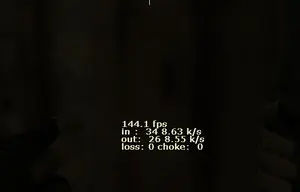
FPS (Frames Per Second) determines how smoothly CS 1.6 runs on your computer. A stable frame rate can make movement feel smoother and help you maintain consistent aim during matches. If you experience low FPS or sudden frame drops, adjusting game settings and optimizing your PC may improve performance.
Check your current performance before changing settings. This helps you identify whether the problem comes from graphics settings, background applications, overheating, or other system limitations.
Optimize CS 1.6 Launch Options
Launch options let you customize how Counter-Strike 1.6 starts. Depending on your client, you can add supported options through Steam or your desktop shortcut.
Example launch options:
-novid -noforcemparms -noforcemaccel -noforcemspd
These options can skip the intro video and adjust mouse input behavior on supported clients. Their effects may vary depending on your CS 1.6 version and Windows configuration.
If your monitor supports a higher refresh rate, configure it correctly in Windows. You can test -freq 144 if your monitor supports 144 Hz, but replace the number with your actual supported refresh rate or remove the option if it causes display problems.
Avoid adding unnecessary launch options such as -high without testing. Higher process priority does not guarantee better FPS and may affect other applications.
Best Video Settings for Higher FPS
The right video settings can help CS 1.6 run more consistently, particularly on older Windows PCs. Start with these adjustments and test your performance after each change.
1. Select a screen resolution that runs smoothly on your PC.
2. Disable V-Sync if it limits your frame rate or introduces noticeable input delay.
3. Reduce model detail if your game client provides this option.
4. Lower texture quality where the available video settings allow it.
5. Choose a suitable renderer for your graphics hardware and game version.
6. Keep your monitor refresh rate configured correctly in Windows.
7. Test visual effects and display settings individually to find a balance between image quality and smooth performance.
CS 1.6 FPS and Configuration Commands
CS 1.6 configuration commands let you adjust supported frame-rate and network settings. Their effects depend on your game client, server configuration, and connection, so keep a backup of your original configuration before making changes.
fps_max 100
Sets the FPS limit to 100 on clients that support this command. Test a different supported value if necessary and compare the results.
cl_updaterate 100
Sets the requested server update rate, subject to server limits and client support.
cl_cmdrate 100
Sets the requested command rate. The server and connection can affect the results.
rate 25000
Adjusts the network data rate on supported clients. The suitable value depends on your connection and server settings.
ex_interp 0.01
Sets the interpolation value on clients that support this command. Server settings and client behavior may affect the outcome.
Enter commands through the developer console or add supported settings to your configuration file. Network commands mainly affect online communication and do not directly increase graphics FPS.
Windows Optimization Tips for Better Performance
Optimizing Windows can help reduce unnecessary resource usage while playing Counter-Strike 1.6. Follow these basic maintenance steps for a smoother gaming experience.
1. Close unnecessary background applications and browser tabs before playing.
2. Install stable graphics drivers that are compatible with your hardware.
3. Keep enough free storage space for Windows and your applications.
4. Disable unnecessary startup programs that consume system resources.
5. Monitor CPU and GPU temperatures if performance drops during long gaming sessions.
6. Keep your computer clean and ensure proper airflow around its cooling system.
7. Restart your PC after major driver updates or system changes when required.