How to Install CS 1.6 on PC – Step-by-Step Guide
Follow this CS 1.6 installation guide to set up Counter-Strike 1.6 on your Windows PC, check system requirements, configure the game, and troubleshoot common installation problems.
CS 1.6 System Requirements for Windows PC
Before installing Counter-Strike 1.6, check that your PC has enough available storage and a compatible Windows system. The exact requirements may vary depending on the game edition you choose.
- Operating System: Windows XP, Windows 7, Windows 8, Windows 10, or Windows 11, depending on client compatibility
- Processor: An 800 MHz processor or better is a practical starting point
- Memory: 512 MB RAM or more for a basic setup
- Graphics: Compatible graphics hardware with suitable drivers
- Storage: At least 1 GB of free disk space is recommended
- Internet: A connection is required for online multiplayer gameplay
Download the CS 1.6 Game Client
Choose a Counter-Strike 1.6 edition that matches your preferences and follow its download instructions.
1. Visit the CS 1.6 Editions page to explore available versions.
2. Open the page for your preferred edition and review its details.
3. Click the download link provided for that version.
4. Wait until the file finishes downloading.
5. Open your Downloads folder and locate the downloaded file.
6. Before opening it, scan the file with your security software and verify that it came from a source you trust.
Install CS 1.6 on Your Windows Computer
The installation process depends on whether your downloaded edition is an installer or a compressed archive. Follow the steps that match your file type.
1. If the download is a ZIP or RAR archive, extract it using a trusted utility such as 7-Zip or WinRAR.
2. Open the extracted folder and look for the game's installer or executable.
3. If an installer is included, open it and follow the on-screen instructions.
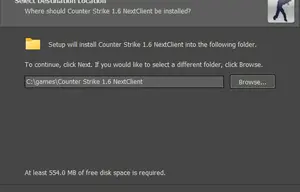
4. Choose an installation folder with enough free disk space.
5. Wait for the installation process to finish before closing the installer.
6. If the edition does not include a setup installer, follow the instructions provided with that specific client instead of looking for a missing setup.exe file.
7. Keep the original download until you have confirmed that the game launches correctly.
First Launch and Game Configuration
Once CS 1.6 is installed, adjust the basic settings to make the game comfortable to play on your PC.
1. Launch the game using its desktop shortcut or game executable.
2. Open the settings menu and adjust your screen resolution and video options.
3. Configure mouse sensitivity, keyboard controls, and audio levels.
4. Start a local game, if supported by your edition, to check that the game runs correctly.
5. Join a trusted online Counter-Strike 1.6 server to test your multiplayer connection.
6. If you experience lag or display issues, adjust the relevant settings and restart the game.
Fix Common CS 1.6 Installation Problems
If Counter-Strike 1.6 does not install or launch correctly, try these troubleshooting steps before reinstalling the game.
- Game will not launch: Check that the download is complete and that the game files are extracted correctly.
- Missing files or errors: Review the edition's installation instructions and check whether your antivirus quarantined a file.
- Compatibility problems: Try the Windows compatibility options appropriate for your game client.
- Connection issues: Check your internet connection, Windows firewall rules, and the server address.
- Crashes or visual glitches: Update your graphics drivers and test different in-game video settings.
- Low FPS: Lower demanding video settings and close unnecessary background applications.
- Installation blocked: Only allow the installer to run if you trust its source and have checked the file for security risks.