CS 1.6 Config Optimization – Best Settings Guide
Optimize your CS 1.6 config for better FPS, network performance, precise mouse control, and smoother gameplay on Windows PC with practical settings and commands.
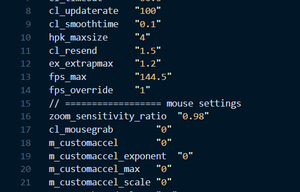
Basic CS 1.6 Config Setup and Essential Commands
Your CS 1.6 config.cfg file stores many of your game preferences, including controls, mouse behavior, and supported network settings. Back up your existing configuration before making changes so you can restore your preferred setup if needed.
The following commands are examples you can test on clients that support them:
rate "25000"
Sets the requested network data rate. The appropriate value depends on your connection and server settings.
cl_updaterate "100"
Sets the requested frequency for receiving server updates, subject to server and client limits.
cl_cmdrate "100"
Sets the requested frequency for sending commands to the server.
ex_interp "0.01"
Sets the interpolation value on supported clients. Server settings and client behavior can affect the result.
m_filter "0"
Disables mouse filtering on clients that support this command, which may help provide a more consistent mouse feel.
m_customaccel "0"
Disables the game's custom mouse acceleration where supported.
fps_max "100"
Sets a 100 FPS limit on clients that support the command. You can test another supported limit if needed; a higher number does not automatically guarantee smoother gameplay.
Add supported commands to your config.cfg file or enter them through the developer console. Remove commands that your client does not recognize.
Optimize Graphics Settings for Better FPS
Choosing the right video settings can help Counter-Strike 1.6 run more consistently, especially on older Windows PCs. Test different settings and keep the combination that performs best on your hardware.
1. Display Resolution:
- Resolution: Start with your monitor's native resolution. If performance is poor, test a lower supported resolution such as 1024x768 or 800x600.
- Refresh Rate: Select a refresh rate supported by your monitor and correctly configured in Windows.
- Color Depth: Use a color-depth option supported by your game client and display.
2. Graphics and Rendering:
- Model Detail: Reduce it if your client provides this option and performance needs improvement.
- Texture Detail: Lower the available texture settings if your game version supports them.
- HD Models: Disable optional high-resolution models if your client includes them and you prefer lower resource usage.
- Renderer: Test a compatible renderer for your system and keep the one that offers stable performance.
Change one setting at a time and compare the results instead of assuming that every low setting will improve FPS.
Sound Configuration for Clearer Gameplay
Good audio settings can make footsteps, weapon sounds, and nearby enemy movement easier to recognize. Choose settings that match your headphones or speakers and help you hear important in-game details clearly.
snd_mixahead "0.05"
Adjusts the sound buffer on supported clients. Lower values may reduce audio delay but can cause crackling or interruptions on some systems.
snd_musicvolume "0"
Sets the background music volume to zero on clients that support this command.
volume "0.8"
Sets the overall game volume to a comfortable level on supported clients. Adjust the value to suit your audio equipment.
Sound commands and their available values can differ between CS 1.6 clients. Test each command and keep the settings that work correctly with your version.
Network Configuration for Stable Online Play
Network configuration can help you monitor your connection and adjust supported communication settings in CS 1.6. Remember that ping and packet loss are also affected by your internet connection, server location, and network congestion.
cl_timeout "60"
Sets the connection timeout value on clients that support this command.
cl_downloadfilter "none"
Controls server download filtering on clients that support this command. Available values and behavior can vary by client version.
net_graph "1"
Displays network and performance information when supported, helping you monitor details such as connection behavior and frame rate.
net_graphpos "2"
Changes the position of the network graph on supported clients.
Start with your server's recommended network settings and make small adjustments when necessary. Changing network commands alone will not fix a weak internet connection or a distant server.
Mouse Settings for Accurate Aim
Consistent mouse movement is important for aiming, tracking opponents, and controlling recoil in Counter-Strike 1.6. Find a sensitivity that feels comfortable and avoid frequently changing it while practising.
1. In-Game Mouse Settings:
- Sensitivity: Choose a value that lets you turn comfortably while maintaining precise crosshair control.
- Raw Input: Enable it if your CS 1.6 client supports it and you prefer direct mouse input.
- Mouse Acceleration: Disable acceleration if you want movement to feel more consistent across different mouse speeds.
2. Windows Mouse Settings:
- Enhance Pointer Precision: Consider disabling it if you want to avoid Windows pointer acceleration.
- Pointer Speed: The sixth notch on the standard Windows pointer-speed scale is commonly used for a 1:1 setting.
- Mouse Software: Review any extra smoothing, acceleration, or sensitivity options in your mouse software.
- DPI: Choose a DPI level that feels comfortable and works well with your in-game sensitivity.
Test your mouse settings in an offline match or practice map before using them in competitive games.